Notification Trigger
Select which apps to monitor, and FlowTrigger automatically forwards the notification data — title, body, app name, category, and timestamp — to your webhook endpoint whenever a matching notification arrives. No manual action required.
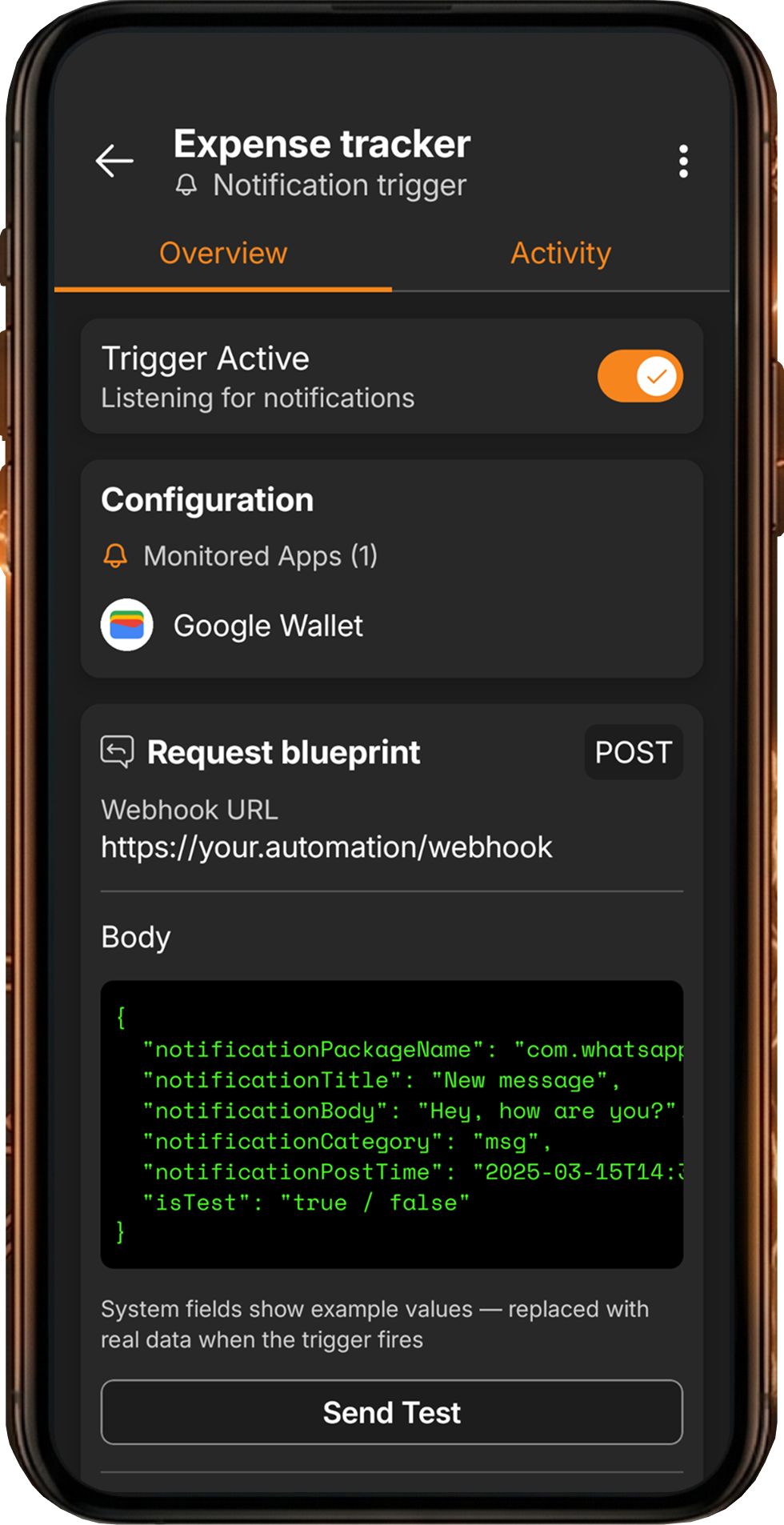
- Automatic forwarding — matching notifications are captured and sent as HTTP requests without any manual action.
- App selection — choose exactly which apps to monitor. Search, filter, and toggle individual apps from a complete list of installed apps.
- Runs in background — the trigger listens silently. No need to keep FlowTrigger open.
- Rich notification data — each request includes package name, title, body, category, and timestamp.
- Customizable field names — rename any field in the Advanced tab to match your n8n, Make, or Zapier workflow’s expected schema.
- Premium feature with a 7-day free trial.
What notification data is sent to the webhook?
Each notification is sent as a JSON HTTP request with Content-Type: application/json. The default payload contains five fields:
{
  "notificationPackageName": "com.example.app",
  "notificationTitle": "New message from John",
  "notificationBody": "Hey, are you coming to dinner tonight?",
  "notificationCategory": "msg",
  "notificationPostTime": "2026-03-18T14:32:00.000+01:00"
}| Field | Description |
|---|---|
notificationPackageName | The Android package name identifying the source app |
notificationTitle | The notification’s title line |
notificationBody | The main content of the notification |
notificationCategory | Android’s category classification (e.g., msg, email, alarm) |
notificationPostTime | ISO 8601 timestamp of when the notification was posted |
All field names are customizable in the Advanced settings tab. If your n8n or Make workflow expects app instead of notificationPackageName, you can rename it there.
What are some use cases for notification triggers?
Notification triggers unlock a wide range of automations by bridging your Android phone’s notification stream with your n8n, Make, Zapier, or custom workflows:
- Expense tracking: Monitor notifications from your banking app or Google Wallet. Each transaction notification is forwarded to your webhook, which logs it in a Google Sheet or Notion database.
- Message forwarding: Forward messages from specific apps (WhatsApp, Telegram, SMS) to a Slack channel, email, or another messaging platform via your automation workflow.
- Alert monitoring: Forward notifications from server monitoring apps (UptimeRobot, Datadog, PagerDuty) to a centralized dashboard or a team Slack channel.
- Social media tracking: Capture notifications from social media apps to log engagement metrics, track mentions, or archive activity.
- Parental monitoring: Forward notifications from specific apps on a child’s device to a parent’s dashboard.
- Smart logging: Automatically log delivery notifications, calendar reminders, or any app event to a spreadsheet or database.
Other trigger types in FlowTrigger
FlowTrigger offers four trigger types to connect your Android phone with your automation workflows:
- Manual Triggers — press a button to send text, photos, audio, and voice-to-text to your webhook. Free to use.
- Chat Triggers — a conversational interface that communicates with an LLM running inside your workflow. Free to use.
- Location Triggers — trigger webhooks based on GPS location: zone entry/exit events and distance-based tracking. Premium feature.