Chat Trigger
Two-way chat interface through a clean chat UI on your phone. You bring your own workflow and your own AI model:
- Communicate with an AI model running inside your automation workflow.
- Send yourself push messages from your automation to your phone.
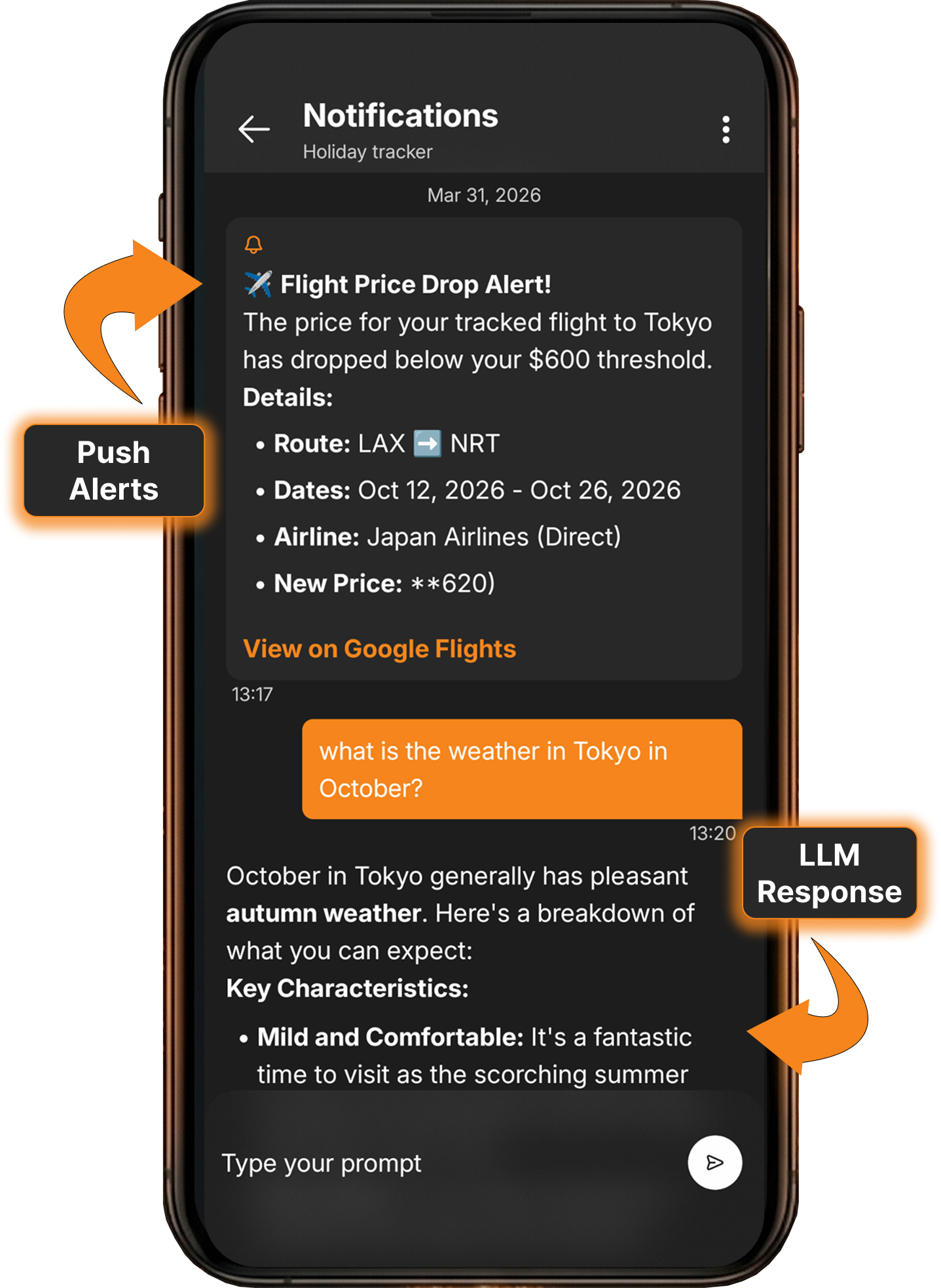
- Conversational interface — send messages and receive responses in a chat-style UI. Built for back-and-forth exchanges, not fire-and-forget.
- Session management — each conversation gets a unique session ID, allowing your workflow to maintain context across messages.
- Push notifications — your workflow can send messages back to the app asynchronously via a dedicated push URL. Premium feature.
- Works with any LLM — OpenAI (GPT-4), Anthropic (Claude), Google (Gemini), Mistral, Llama, or local models via Ollama. FlowTrigger doesn’t connect to AI services directly — your workflow controls the model.
- Markdown support — display responses and push notification messages in markdown format.
- Free to use — chat triggers are included in the free version of FlowTrigger.
- Full HTTP control — customize method, field names, authentication, headers, and add custom JSON fields in the Advanced tab.
What does the JSON payload look like for a chat trigger?
Chat triggers send requests with Content-Type: application/json. The default payload:
{
  "input": "your message text",
  "sessionId": "unique-session-identifier"
}
Both field names are configurable. If your workflow expects message instead of input, change the Chat Input Field in the setup screen. If it expects thread_id instead of sessionId, rename it in the Advanced tab under System JSON Fields.
Your workflow should return a JSON response that includes the field specified as the Chat Response Field (default: output):
{
  "output": "Here is the answer to your question..."
}
FlowTrigger extracts the value of that field and displays it as the assistant’s reply in the chat interface.
What are chat sessions and how do they work?
You can create multiple chat sessions within a single chat trigger — think of them as separate conversation threads. The sessions list shows all your conversations, making it easy to switch between topics or start fresh.
Each conversation gets a unique session ID that FlowTrigger sends with every message, allowing your workflow to maintain context and conversation memory across messages.
When you create a new session, a new session ID is generated. Your workflow can use this ID to store and retrieve conversation history (for example, using n8n’s Window Buffer Memory node or a database lookup in Make).
The session ID is sent as the sessionId field in every request. This field name is visible in the system JSON fields on the Advanced tab and can be customized if your workflow expects a different name.
How do push notifications work with chat triggers?
Push notifications allow your automation workflow to send messages to FlowTrigger asynchronously — even when you’re not using the app. This is a premium feature.
Each chat trigger gets a unique Push URL, displayed on the trigger’s overview screen:
https://api.flowtrigger.app/push/{your-push-id}Your workflow can send a POST request to this URL at any time:
{
  "message": "Your report is ready!"
}
The notification appears on your phone and is stored in a dedicated Push Notification Inbox within the chat trigger’s sessions list.
This is the only feature in FlowTrigger that uses a cloud intermediary. The push notification is routed through FlowTrigger’s cloud function to deliver it to your device via Firebase Cloud Messaging. All other features communicate directly between your phone and your webhook endpoints.
Use cases for push notifications include: workflow completion alerts, scheduled reminders from your automation, error notifications from background processes, and proactive messages from your AI agent.
Other trigger types in FlowTrigger
FlowTrigger offers four trigger types to connect your Android phone with your automation workflows:
- Manual Triggers — press a button to send text, photos, audio, and voice-to-text to your webhook. Free to use.
- Notification Triggers — automatically forward notifications from selected apps to your webhook endpoint. Premium feature.
- Location Triggers — trigger webhooks based on GPS location: zone entry/exit events and distance-based tracking. Premium feature.